If your smart diffuser won’t connect, start by ensuring your WiFi is active, stable, and on a 2.4 GHz band since many devices don’t support 5 GHz networks. Keep your phone close and restart both your router and phone to refresh connections. Double-check that the app is up to date and follow all setup instructions carefully. Resetting the diffuser to factory settings can also help clear previous configurations. For more tips, keep exploring how to troubleshoot common pairing issues effectively.
Key Takeaways
- Ensure your WiFi is active, stable, and on a 2.4 GHz band, as many diffusers do not support 5 GHz networks.
- Restart your router, phone, and diffuser to resolve temporary glitches and refresh network connections.
- Verify Bluetooth and WiFi are enabled on your phone, and keep your device close to the diffuser during setup.
- Properly follow the app’s setup instructions, selecting the correct network and entering passwords accurately.
- Reset the diffuser to factory settings if connection issues persist, then reattempt pairing from scratch.
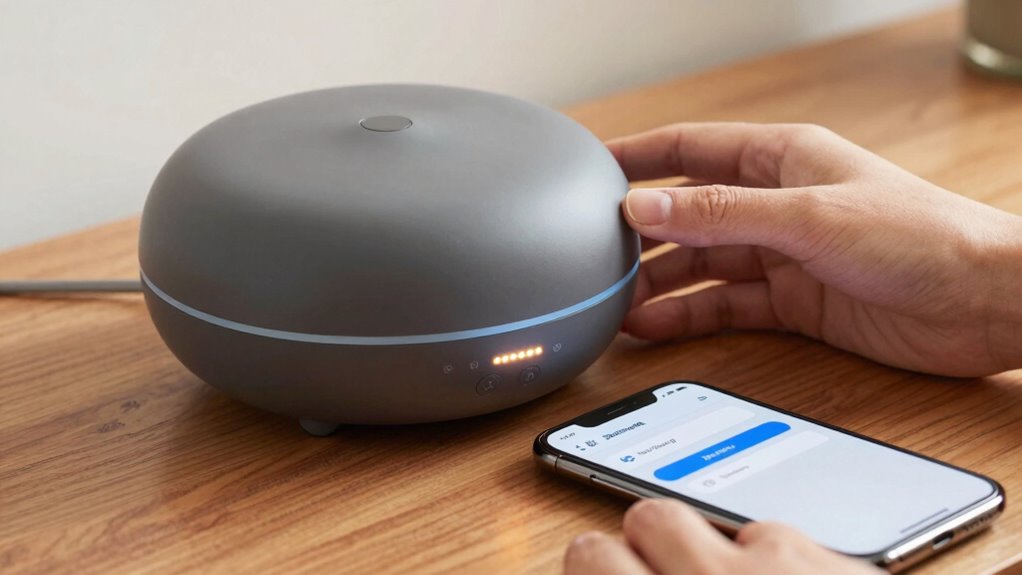
If you’re having trouble pairing your smart diffuser, you’re not alone. Many users face challenges connecting their device to WiFi or achieving smooth app synchronization. These issues are common but often easy to fix with a few straightforward steps. The first thing to check is your WiFi connectivity. Make sure your WiFi network is active, stable, and operating on a 2.4 GHz band, as many smart diffusers don’t support 5 GHz networks. A weak or intermittent WiFi signal can prevent your diffuser from connecting properly. Move your router closer to the diffuser or reduce other device activity that might be congesting your network. Restarting your router can also refresh the connection and resolve minor glitches.
Ensure your WiFi is active, stable, and on a 2.4 GHz band for smooth diffuser pairing.
Next, ensure your smartphone’s WiFi and Bluetooth are enabled and functioning correctly. Sometimes, the device you’re using to set up the diffuser might interfere with the pairing process if Bluetooth is turned off or if there’s a network issue on your phone. Close any background apps that might be using your WiFi or Bluetooth, and consider restarting your phone to clear temporary glitches. When you attempt to connect, keep your phone close to the diffuser to improve the strength of the Bluetooth signal during setup.
App synchronization is another critical factor. Download and install the latest version of the diffuser’s app from your app store. Developers often release updates that fix bugs and improve compatibility, making your setup process smoother. When you open the app, follow the setup instructions carefully, ensuring you select the correct WiFi network and enter the password accurately. Many troubleshooting issues stem from simple mistakes like typos or choosing the wrong network. If your app prompts you to connect to the diffuser’s temporary WiFi or hotspot, make sure you switch back to your home WiFi once the initial pairing is complete. This step is essential for ongoing app synchronization and remote control.
Additionally, understanding the art care principles can help you maintain your diffuser and other smart devices for optimal performance, ensuring a better user experience over time. If you encounter persistent problems, try resetting your diffuser to factory settings. This clears previous network configurations and can resolve conflicts causing pairing failures. After resetting, restart your phone and router, then attempt the setup process from scratch. Patience is key—sometimes, waiting a few moments between steps allows devices to stabilize and recognize each other better.
Frequently Asked Questions
Can I Pair Multiple Diffusers With One App?
Yes, you can pair multiple diffusers with one app, but keep in mind that diffuser placement affects signal strength, so place them within range. Make sure your app is updated regularly, as update frequency can improve connectivity. Some apps support multiple device control, but check your specific diffuser model’s compatibility. Proper placement and keeping your app current help ensure smooth, simultaneous operation of all diffusers.
Does Wi-Fi Interference Affect Pairing Success?
Yes, Wi-Fi interference can affect pairing success. Wireless interference from other devices, thick walls, or crowded networks can cause signal disruption, making it harder for your diffuser to connect smoothly. To improve your chances, try reducing nearby electronic activity, moving closer to your router, or switching to a less congested Wi-Fi channel. These steps help minimize interference and guarantee a stronger, more reliable connection.
How Long Does the Initial Pairing Process Take?
The initial pairing process usually takes about 5 to 10 minutes during the initial setup. You should guarantee your Wi-Fi connection is stable and follow the app instructions carefully. Keep your diffuser close to your device to prevent connectivity issues. If it takes longer, try restarting your diffuser and your device, or resetting the pairing mode. This helps streamline the pairing duration and ensures a smooth setup.
Are There Compatibility Issues With Specific Smartphones?
You might wonder if your smartphone compatibility is the issue, but most diffusers work with a wide range of devices. Make certain your device firmware is up to date, as outdated software can cause connection problems. Keep in mind, some older or less common smartphones may face compatibility issues. To improve your chances, check the diffuser’s supported devices list and update your phone to the latest firmware before pairing.
What Should I Do if My Diffuser Disconnects Automatically?
If your diffuser disconnects automatically, start by turning it off and unplugging it. Then, power cycle both your diffuser and your smartphone to refresh Bluetooth connectivity. After a few seconds, plug your diffuser back in and turn it on. Reconnect via Bluetooth, ensuring your device stays within range. This simple power cycling and re-establishing Bluetooth connection often resolve automatic disconnections quickly.
Conclusion
Most pairing issues with your smart diffuser are quick fixes, and you’re now equipped to troubleshoot confidently. Did you know that over 85% of users resolve connectivity problems on their first try? With these simple tips, you’ll enjoy hassle-free aromatherapy sessions in no time. Keep your diffuser updated and within range, and you’ll experience the soothing scents you love without interruption. Happy diffusing!